
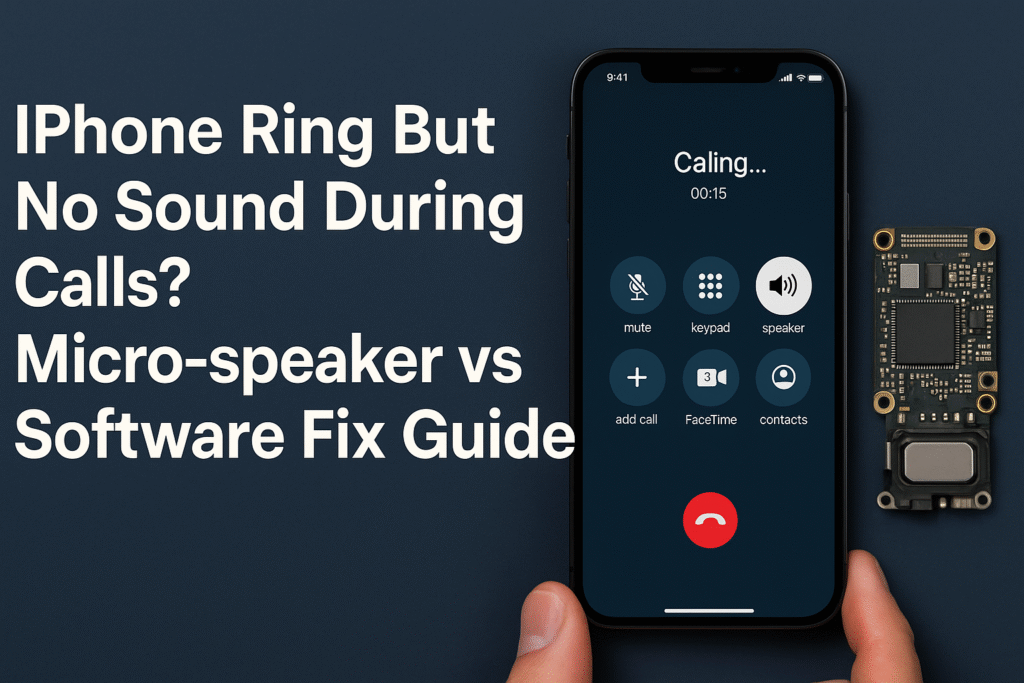
When your iPhone rings perfectly fine but goes silent the moment you answer, it’s frustrating and confusing. The problem might seem small, but it often points to deeper issues in your phone’s audio hardware or software system. Whether it’s a micro-speaker failure, audio IC problem, or a simple software glitch, ignoring it can lead to complete call audio loss later.
At QuickFix iPhone, we’ve seen this issue appear in hundreds of iPhones, from older iPhone 7 units to the latest models. This detailed guide walks you through every cause, fix, and prevention tip so you can make an informed decision before visiting a repair expert.
Understanding the Problem: Why You Hear Nothing During Calls
It’s easy to assume a call sound issue is minor, but the reason your iPhone rings yet goes silent once you pick up can vary between speaker hardware failure and software miscommunication.
During normal operation, your iPhone uses three key sound components:
- Ringer speaker (bottom loudspeaker) — handles alerts, music, and incoming call rings.
- Earpiece (micro-speaker) — handles in-call audio.
- Audio IC chip — controls signal transmission between both speakers and iOS software.
When you hear the ring but no call sound, it usually means:
- The micro-speaker isn’t working properly.
- The audio IC chip failed to process output.
- The software is stuck in a wrong mode (e.g., thinking Bluetooth is still connected).
These three layers — hardware, connection, and software — are the pillars of diagnosing this problem correctly.
Hardware-Based Causes (When Your Micro-Speaker Is to Blame)
1. Micro-Speaker Failure
The earpiece speaker is tiny and exposed to dust, humidity, and earwax buildup. Over time, it can lose conductivity or get physically blocked.
Fix Attempt: Gently clean the top grill using a dry soft-bristle brush or a microfiber cloth. Avoid liquid cleaners that can seep inside.
If cleaning doesn’t help, the micro-speaker might need replacement — a quick procedure available at QuickFix iPhone Repair Center.
2. Audio IC (Logic Board) Failure
A deeper problem could lie in the audio IC chip located on the iPhone’s logic board.
Symptoms of a failing audio IC include:
- No sound in calls but working ringer and media sound.
- Voice Memo app crashing instantly.
- Speaker option greyed out during calls.
Why it Happens: Repeated overheating or motherboard flexing (common in dropped phones) can cause solder cracks under the IC chip.
Repair Solution: Re-soldering or replacing the IC chip — a micro-soldering task only professionals should handle. Visit the nearest QuickFix iPhone location for board-level service.
3. Water or Moisture Damage
Even a small splash can corrode internal speaker lines. Water seeps into the mesh grill and damages the diaphragm over time.
Tip: If your iPhone recently got wet and this issue started afterward, power it off immediately. Do not plug it into a charger or blow hot air into it. Bring it for a diagnostic repair to prevent further damage.
4. Faulty Speaker Connector Flex Cable
When a phone is dropped or opened for previous repairs, flex connectors can become loose. A slightly disconnected cable can mute the earpiece entirely.
Solution: Re-seating the flex cable usually restores the sound — a fast and affordable repair at QuickFix iPhone.
Software-Based Causes (When iOS or Settings Are the Culprit)
1. Bluetooth Interference
If your phone thinks it’s still connected to a Bluetooth device, call audio gets redirected there.
Fix:
- Go to Settings → Bluetooth.
- Toggle it OFF or disconnect all paired devices.
- Try another call to check if audio returns.
2. iOS Audio Routing Bug
In older or unstable iOS versions, the device might misroute audio output to a non-existent accessory.
Fix:
- Plug in wired headphones.
- Make a test call.
- Unplug and check if internal speaker resumes.
If it works, the problem was a routing glitch.
3. Outdated iOS Version
Outdated iOS builds may cause random audio driver malfunctions.
Solution: Update via Settings → General → Software Update.
Make sure your phone has at least 50% battery before proceeding.
4. Sound Settings Conflict
Sometimes, custom accessibility settings affect audio behavior during calls.
Check:
Settings → Accessibility → Audio/Visual → Balance → ensure the slider is centered.
Also verify “Phone Noise Cancellation” is ON for clear call sound.
5. Silent or Do-Not-Disturb Confusion
Even though your phone rings, the sound profiles can interfere with call audio behavior when switching between Ring, Silent, and Focus modes.
Fix: Turn off Focus or DND mode and restart the phone.
Diagnosing the Issue: Step-by-Step Testing
Before assuming the speaker is dead, follow this structured test plan:
- Test Ringer Speaker:
Play a video or song. If sound works, the main loudspeaker is fine. - Test Earpiece Speaker:
Call your voicemail. If you can’t hear anything, use speakerphone.
If sound plays on speaker but not earpiece — it’s a micro-speaker issue. - Test Microphone Functionality:
Record a voice memo. If the file records properly, the mic is good — your problem lies in output, not input. - Check Audio IC Symptoms:
If “Speaker” option is greyed out during calls — logic board issue confirmed.
At this point, DIY fixes may not help. Visit QuickFix iPhone for a full diagnostic service.
Common Models Affected
- iPhone 7 / 7 Plus – notorious for Audio IC chip failure
- iPhone 8 / X – moisture and flex cable damage
- iPhone 11 – minor software routing bugs
- iPhone 12 / 13 / 14 – Bluetooth misrouting and mic flex issues
Technicians at QuickFix iPhone are trained to identify model-specific weak points before suggesting replacement or repair.
QuickFix Repair Solutions
At QuickFix iPhone, our technicians first perform a free inspection to determine if your no-sound issue is hardware- or software-based. Depending on the result, repair options include:
- Micro-Speaker Replacement – solves most hardware-related sound failures.
- Audio IC Rework or Replacement – restores complete sound functionality.
- Moisture Damage Cleanup – corrosion removal and board preservation.
- Software Reset / iOS Reinstallation – fixes misrouted audio drivers.
All replacements use high-grade components and come with warranty coverage.
Explore more on our Repair a Device page or visit the Contact Us page to schedule a same-day service.
Prevention Tips to Avoid Future Audio Issues
- Avoid Moisture:
Even small humidity levels can degrade speaker mesh and cause corrosion. - Handle With Care:
Repeated drops flex the motherboard, stressing the audio IC. - Regular Cleaning:
Use a dry soft brush weekly to clear the top speaker grill. - Update iOS Regularly:
Each update often patches audio bugs. - Avoid Third-Party Chargers:
Power surges can harm delicate board components, including sound ICs.
When to Seek Professional Help
If you’ve tried all software fixes and your phone still rings but goes silent during calls, it’s time to consult experts. Continuing to use your phone like this can worsen the issue — especially if the logic board is already stressed.
Professional repair ensures:
- Accurate diagnostics
- Proper part handling
- Long-term reliability
Visit any QuickFix iPhone location for expert service or Contact our team directly for remote assistance options.
Conclusion
Hearing your iPhone ring but getting no call audio doesn’t always mean your phone is beyond saving. Most cases stem from small micro-speaker faults or iOS misconfigurations — both easily fixable. However, ignoring the signs could turn a simple repair into a complex board issue.
For accurate diagnosis and fast repairs, QuickFix iPhone provides expert service, genuine replacement parts, and professional technicians you can trust. Whether you need a quick device repair, want to buy or sell a device, or simply need guidance, we’re here to help you restore your iPhone’s sound.
FAQs
Q1: Why can I hear my ringtone but not the caller’s voice?
This usually means your earpiece (micro-speaker) isn’t functioning or iOS is misrouting audio output. Try cleaning the grill, disconnecting Bluetooth, or restarting your phone. If it persists, visit QuickFix iPhone.
Q2: Can a software update fix iPhone call audio issues?
Yes, if caused by a temporary iOS bug or outdated driver. Always back up your device and install the latest version before assuming hardware failure.
Q3: Is the Audio IC repair expensive?
Audio IC repair is a precision task but often cheaper than replacing the entire logic board. You can get a quote from QuickFix before proceeding.
Q4: What if water caused my iPhone to lose call sound?
Turn off the phone and avoid drying it with heat. Bring it to QuickFix iPhone immediately for moisture cleanup.
Q5: Can I replace the micro-speaker myself?
DIY repairs can cause additional damage. It’s safer to let certified technicians handle component replacements.
Disclaimer
This article is for informational purposes only. If your iPhone has internal or electrical damage, seek professional repair at QuickFix iPhone instead of attempting self-fixes.