
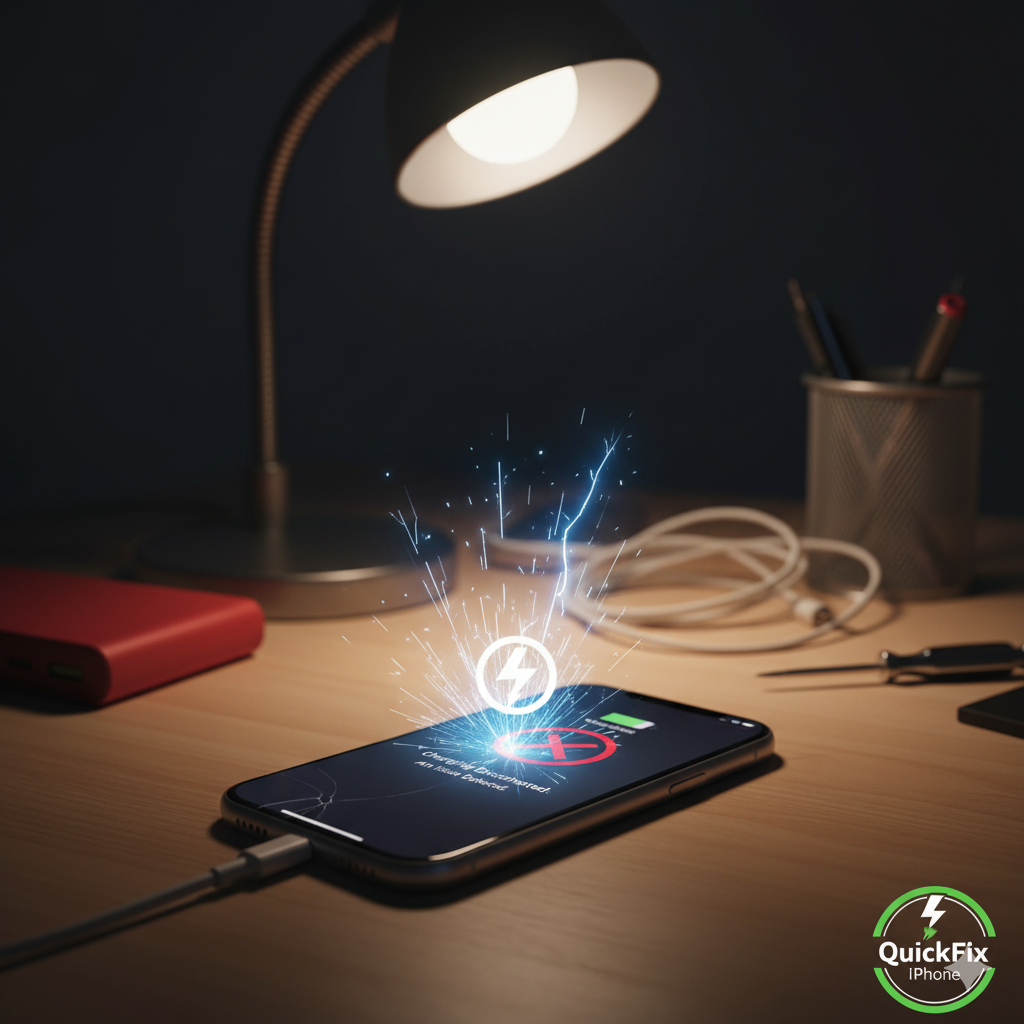
You plug your iPhone in, the charging sound plays… and just seconds later, it stops. You unplug, plug it back in, and it happens again — frustrating, right?
If your iPhone charges then immediately unplugs, you’re not alone. This strange issue is more common than you think, and it can be caused by anything from a simple cable fault to a deeper logic board problem.
At QuickFix iPhone, we see this issue daily across various models — from older iPhone 7s to the latest iPhone 15 series. This guide explains why your iPhone starts charging and stops seconds later, what you can do to fix it, and when it’s time to bring it in for repair.
Section 1: Understanding How iPhone Charging Works
Before we dive into troubleshooting, let’s understand how the iPhone charging system operates.
Your iPhone’s charging process involves three critical components:
- Power Source (wall adapter, USB port, or wireless charger)
- Charging Cable and Port (Lightning or USB-C connection)
- Battery and Logic Board Communication
When you plug in your phone, power flows through the cable to the charging IC (integrated circuit) — a smart chip that manages voltage and current. If anything disrupts this communication, your iPhone may stop charging instantly.
This “plug-unplug” loop is your phone’s way of protecting itself from electrical damage.
Understanding this mechanism helps pinpoint whether your issue lies in the hardware, software, or accessories.
Section 2: Common Causes of iPhone Charging Disconnection
Let’s explore the top reasons why your iPhone charges and then instantly stops.
1. Dirty or Damaged Charging Port
Dust, lint, or corrosion inside the Lightning/USB-C port can block the metal contacts. Even a small obstruction can cause intermittent connections, making your iPhone think the charger was removed.
Try shining a flashlight into the port — if you notice debris, gently clean it using a dry, soft brush or wooden toothpick. Avoid metal pins or liquids that could short the port.
If cleaning doesn’t help, visit our Repair a Device page for professional port cleaning and inspection.
2. Faulty Cable or Charger
Many iPhones disconnect mid-charge due to damaged or non-certified charging accessories. Cheap or frayed cables often cause unstable current flow.
Always use original Apple or MFi-certified cables. You can test by borrowing a friend’s charger or using a different adapter to see if the issue persists.
Need an original replacement? You can explore device accessories through our Buy a Device section.
3. Software Glitches
Sometimes, it’s not the hardware — it’s the software. iOS constantly monitors charging behavior, and if it detects unusual current patterns, it can automatically cut off charging for safety.
Try these steps:
- Restart your iPhone.
- Update iOS to the latest version.
- Reset all settings: Settings > General > Transfer or Reset iPhone > Reset All Settings.
These quick actions can often fix charging bugs.
4. Battery Health Issues
If your battery health has dropped below 80%, charging interruptions can occur more frequently.
You can check this under:
Settings > Battery > Battery Health & Charging.
If the battery shows “Service Recommended,” your iPhone may disconnect charging to prevent overheating or overvoltage.
The safest solution is to replace your battery professionally through our Repair a Device team.
5. Overheating or Temperature Control
iPhones are built with temperature sensors that cut off charging when the device gets too hot.
If you notice the phone warms up while charging and stops mid-way, remove the case, move to a cooler environment, and try again later.
6. Power Surge or Inconsistent Outlet
Fluctuating voltage from an unstable power source can trigger protective disconnection. Try charging from a different wall socket or computer USB port.
If you frequently experience power surges at home or work, consider wireless charging as a safer alternative.
Section 3: How to Fix iPhone That Charges Then Stops
Here’s a practical, step-by-step guide to troubleshooting this issue yourself before visiting a repair center.
Step 1: Inspect the Charging Cable
Look for any bends, burns, or exposed wires. Try another certified cable.
If your iPhone stays connected this time, you’ve found your culprit.
Step 2: Clean the Charging Port
Dust can block the connectors. Use a soft, dry toothbrush or anti-static brush to clear the debris.
Step 3: Restart or Update iPhone
Restart your device and check for software updates under Settings > General > Software Update.
Step 4: Try a Different Power Source
Use a wall adapter instead of a computer, or vice versa. Also test wireless charging if supported.
Step 5: Reset All Settings
Resetting system preferences (without deleting data) often fixes persistent software-based charging issues.
Step 6: Check Battery Health
If battery performance has degraded, it’s time to get it replaced. You can book an appointment easily via our Locations page.
Section 4: When to Seek Professional Repair
Sometimes, no matter how many fixes you try, the charging problem keeps coming back. That’s a sign of deeper hardware failure — often involving the charging IC chip or logic board.
Here’s when to contact QuickFix iPhone for a professional inspection:
- Charging cuts off instantly on multiple cables
- iPhone only charges when angled a certain way
- The port feels loose or physically damaged
- You hear crackling or smell burning plastic
- iPhone battery drains quickly even when plugged in
Our certified technicians perform in-depth diagnostics using specialized tools. Whether the fix involves port replacement, battery change, or logic board repair, we ensure precise results backed by warranty.
Schedule your service today through our Repair a Device page or message us directly via Contact Us.
Section 5: Preventing Charging Disconnection in the Future
Here are expert-recommended ways to prevent charging interruptions:
1. Avoid Cheap Cables
Use Apple or MFi-certified accessories. Inferior cables can cause data loss or damage charging circuits.
2. Keep the Port Clean
Regularly clean the charging port and avoid using your phone in dusty or humid conditions.
3. Avoid Charging Overnight
Prolonged charging can overheat the battery, reducing its lifespan.
4. Avoid Moisture
If your iPhone was recently exposed to water, corrosion may be forming inside the port — even if the device seems fine.
For moisture-related issues, visit QuickFix iPhone’s Repair Team before permanent damage sets in.
5. Get Regular Diagnostics
Our About Us page explains our commitment to quality checks and preventive maintenance that help keep your devices working perfectly.
Section 6: QuickFix iPhone’s Repair Process
When you bring your iPhone in for charging repair, here’s what happens:
- Free Diagnostics – We test all possible causes (port, cable, IC chip, software).
- Component Inspection – The port, battery connector, and internal chips are checked under magnification.
- Part Replacement (if needed) – Damaged charging ports or cables are replaced with genuine-quality parts.
- Voltage Stabilization Test – We measure current flow and calibrate charging circuits.
- Final Verification – After repair, we test your phone under real-use conditions for stable charging performance.
If you manage multiple business devices, our B2B Computer Repairs Program offers reliable maintenance for bulk units.
Section 7: FAQs
Q1: Why does my iPhone charge for a few seconds and stop?
A: The issue usually stems from a faulty cable, dirty port, or software glitch. Start by cleaning the port and testing another charger.
Q2: Can water damage cause charging disconnections?
A: Yes, even small moisture exposure can corrode charging pins. Get a diagnostic immediately at QuickFix iPhone.
Q3: My iPhone only charges when angled. What does this mean?
A: The port connector may be loose or bent. A port replacement usually fixes it.
Q4: Is it safe to keep plugging it in repeatedly?
A: No. Repeated attempts can worsen contact wear and damage internal pins.
Q5: Does QuickFix iPhone offer same-day charging port repairs?
A: Yes! Most charging issues are fixed within an hour depending on parts availability. Check our Locations page for your nearest store.
Conclusion
When your iPhone keeps connecting and disconnecting from power, it’s not just a random glitch — it’s your device trying to tell you something.
Ignoring it could lead to bigger problems, from battery failure to logic board damage. If basic cleaning and cable swaps don’t help, let the experts handle it.
At QuickFix iPhone, we offer fast, affordable, and transparent repair services to get your iPhone charging normally again — no more interruptions, no more frustration.
Disclaimer
This content is for informational purposes only and not a substitute for professional repair advice. If your iPhone continues to disconnect while charging, book an inspection through QuickFix iPhone’s Repair Page or contact our team directly.