
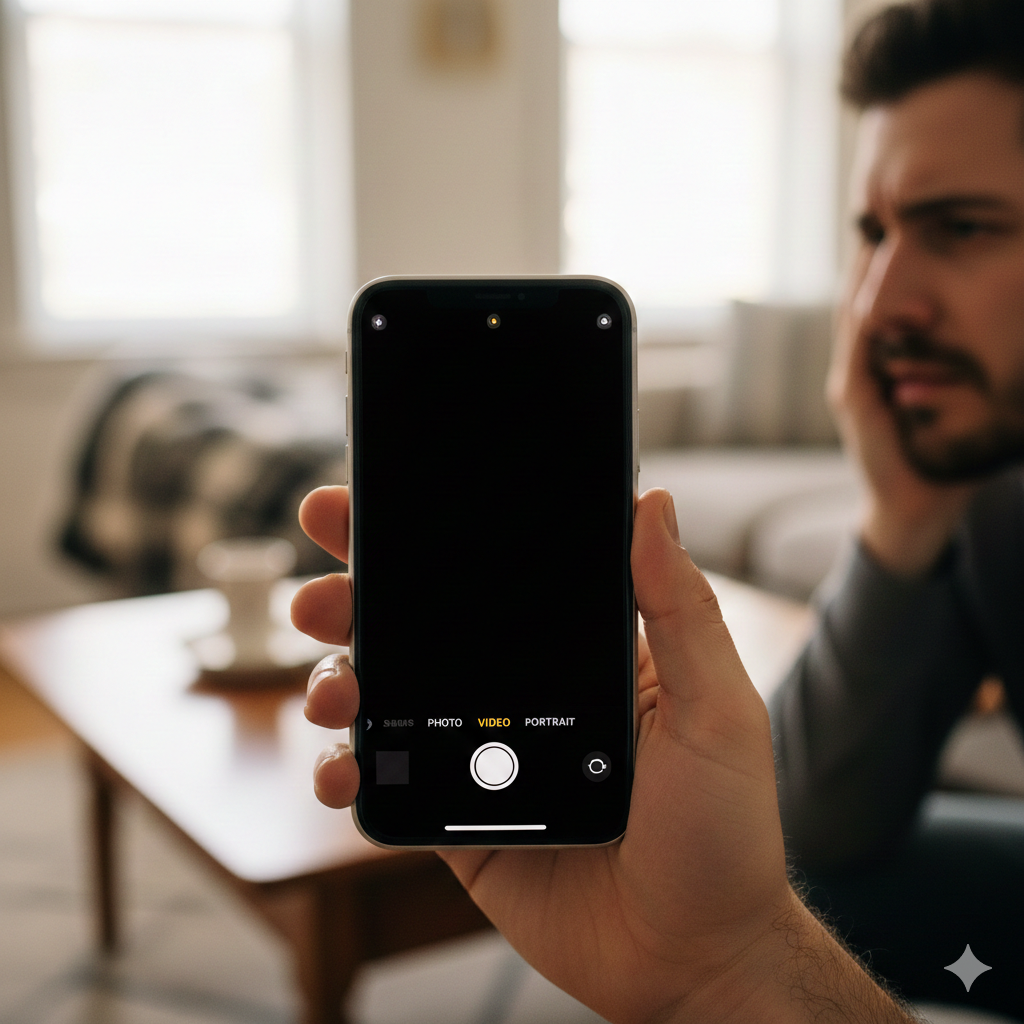
Imagine the perfect moment: a sunset, a child’s first steps, or a rare reunion. You pull out your iPhone, swipe to the camera, and… nothing. The app freezes, crashes back to the home screen, or shows the dreaded “black screen of death.” It is beyond frustrating.
As a technical specialist at Quick Fix iPhone, I have seen thousands of devices with these exact symptoms. While iPhones are built for stability, the camera is a complex integration of high-end hardware and resource-heavy software. When they don’t play nice, your photography comes to a halt. In this guide, I’ll break down the real reasons your camera is acting up and provide the same professional-grade solutions we use at our repair locations.
Section 1: The Technical Breakdown of Camera Failure
The iPhone camera isn’t just a lens; it’s a system. According to industry data from 2024, nearly 65% of app-specific crashes on iOS are related to memory management or software conflicts. When you launch the camera, your iPhone triggers the Image Signal Processor (ISP), allocates a massive chunk of RAM, and activates the hardware stabilizers. If any part of this chain breaks, the app collapses.
The “YMYL” of Your Device
Your smartphone is a “Your Money Your Life” (YMYL) tool in many ways—it stores your banking, identity, and precious memories. Relying on “hacks” can sometimes lead to data loss or further hardware damage. That’s why we focus on verified, safe methods to restore your device. If your phone has recently suffered a hard drop or water exposure, software fixes likely won’t work, and you should contact us immediately for a diagnostic.
Section 2: 5 Reasons Your Camera App is Crashing
1. Software Glitches and “Zombie” Processes
Sometimes, the iOS code simply hangs. This is common after a major update (like the transition to iOS 18 or the latest iOS 26 builds). A “zombie” process is a background task that didn’t shut down correctly, hogging the resources the camera needs to initialize.
2. Insufficient “Scratch Space” (Storage)
The camera app requires a specific amount of “buffer” storage to process high-resolution images and 4K video before they are saved to your gallery. If your storage is 99% full, the app has nowhere to “think,” causing it to crash instantly upon opening.
3. RAM Overload from Background Apps
If you have 50 apps open, including heavy games or navigation tools, your iPhone’s RAM is stretched thin. The camera is a “VIP” app—if the system can’t give it the memory it demands, the app will terminate to prevent a total system crash.
4. Corrupted System Settings
Sometimes, the “handshake” between your camera permissions and the hardware gets corrupted. This often happens if you use many third-party apps like Instagram, Snapchat, or TikTok that all vie for camera control.
5. Hardware & Sensor Failure
This is the physical side. iPhone cameras use tiny moving parts for Optical Image Stabilization (OIS). If these parts are jammed due to a drop or internal debris, the software will detect a hardware error and shut the app down to prevent further damage.
Section 3: Professional Fixes to Get You Back in Action
Step 1: The “Force Restart” (The Magic Reset)
Don’t just turn it off and on. A force restart clears the temporary cache and reloads the kernel code.
- For iPhone 8 and later: Quickly press Volume Up, quickly press Volume Down, then hold the Side Button until the Apple logo appears.
Step 2: Purge Your Storage
Go to Settings > General > iPhone Storage. If you have less than 5GB free, your camera will struggle. Consider moving your large videos to a cloud service or selling your old device if you need an upgrade with more capacity.
Step 3: Reset All Settings
If the crash is caused by a software conflict, go to Settings > General > Transfer or Reset iPhone > Reset > Reset All Settings.
Note: This won’t delete your photos, but it will reset your Wi-Fi passwords and wallpaper. It’s a powerful way to “re-seat” the camera’s software permissions.
Step 4: Check for Overheating
High-performance photography generates heat. If your phone feels hot, the iOS “Thermal Throttling” might be killing the camera app to protect the battery and processor. Let it cool for 10 minutes and try again.
Section 4: Conclusion and Final Thoughts
A crashing camera is usually a cry for help from your iPhone’s software or a sign of aging hardware. Most issues can be resolved with a clean restart or by freeing up storage. However, if you see a black screen that won’t go away, or if the camera lens is physically vibrating, it’s time to seek professional help.
At Quick Fix iPhone, we specialize in everything from screen replacements to complex B2B computer repairs. Don’t miss another memory because of a glitchy app. If your phone is beyond a simple fix, you can always buy a certified pre-owned device from us to ensure you’re always ready for the perfect shot.
FAQs
Q: Will resetting my settings delete my photos?
A: No. “Reset All Settings” only reverts system preferences like Wi-Fi, Bluetooth, and Privacy settings to factory defaults. Your photos, videos, and apps remain safe.
Q: Why is my camera black but the flash works?
A: This usually indicates a communication error between the logic board and the camera module. Try a force restart; if that fails, the camera sensor likely needs a physical repair.
Disclaimer: The information provided in this post is for educational purposes. While these steps are generally safe, Quick Fix iPhone is not responsible for data loss or damage resulting from DIY repair attempts. Always back up your device before performing system resets.