
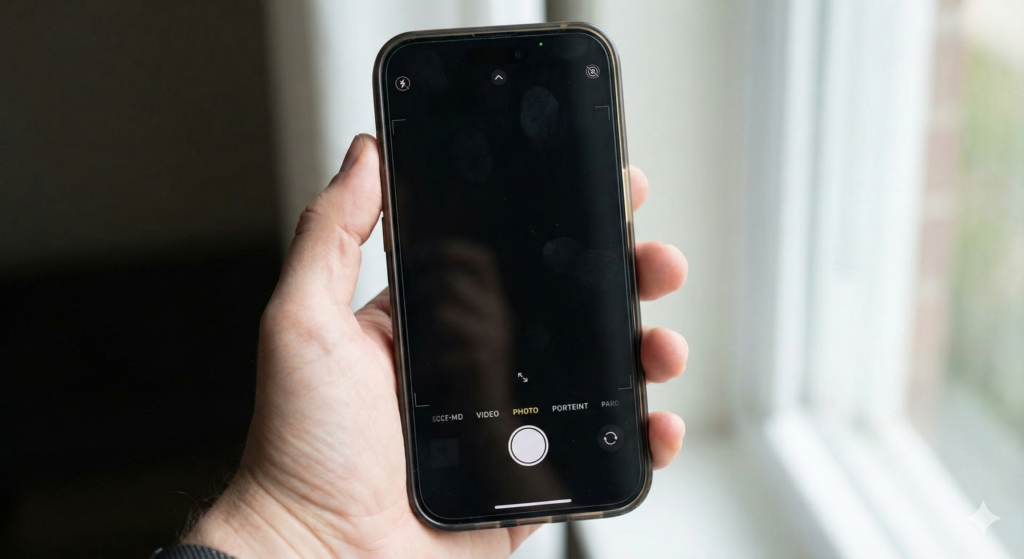
It is one of the most frustrating moments for any smartphone user: You pull out your iPhone to capture a fleeting memory—a child’s first steps, a breathtaking sunset, or an essential document—only to be met with a pitch-black screen. You tap the shutter button, but nothing happens. You switch between video and photo modes, but the viewfinder remains dark.
The “iPhone Black Screen Camera” issue is a common phenomenon that plagues users across various models, from the older iPhone X and 11 series to the latest iPhone 14 and 15 lineups. While it often feels like a catastrophic hardware failure, the reality is frequently less severe.
As a team of repair experts at Quick Fix iPhone, we have diagnosed thousands of devices presenting this exact symptom. In our experience, roughly 70% of these cases are software-related glitches that can be resolved at home without spending a penny. The remaining 30% usually involve hardware disconnections or failures that require professional intervention.
In this comprehensive guide, we will leverage our industry expertise to walk you through the diagnostic process. We will distinguish between simple software bugs and complex hardware failures (YMYL – Your Money Your Life), ensuring you don’t pay for repairs you don’t need, while also knowing exactly when to call in the pros.
Section 1: Understanding the Problem (The “Why”)
Before diving into the fixes, it is crucial to understand why your iPhone camera is acting up. The camera system on an iPhone is a complex interplay of hardware (lenses, sensors, stabilizers) and software (iOS image processing, the camera app). When communication between these two breaks down, the default safety mechanism is often a black screen.
1. Software Glitches and iOS Bugs
The most common culprit is the software. If your iPhone’s Random Access Memory (RAM) is overloaded, or if the Camera app has crashed in the background, the interface may load, but the viewfinder will fail to initialize. Additionally, outdated iOS versions often harbor bugs that affect camera stability.
2. Obstructed Hardware
It sounds simple, but we see it often at our Repair locations. A misaligned phone case, a dirty lens protector, or even internal debris can trick the sensors into thinking the lens is covered, resulting in a black output.
3. The “VoiceOver” Bug
There is a known, peculiar glitch in iOS involving the “VoiceOver” accessibility feature. Occasionally, this feature can conflict with the camera’s operation, causing the shutter to remain closed digitally.
4. Hardware Failure or Disconnection
If your phone has recently suffered a drop or water damage, the ribbon cable connecting the camera module to the logic board may have become loose. Even a microscopic disconnection can render the camera useless.
Section 2: Preliminary Checks (Do This First)
Before we start rebooting and resetting, let’s rule out the obvious environmental factors.
Check for Overheating
iPhones have built-in thermal protection. If you have been using your phone in direct sunlight, or if it was left on a car dashboard, the device will disable non-essential components—including the camera—to prevent permanent heat damage.
- The Fix: If your phone feels hot to the touch, turn it off and let it cool down in a shaded, room-temperature environment for 15 minutes.
Test the Flashlight
This is a critical diagnostic step. The camera flash and the camera sensor are inextricably linked on the logic board.
- The Test: Swipe down to open your Control Center and toggle the Flashlight.
- The Result: If the flashlight does not turn on, this is a strong indicator of a hardware failure. You may need to visit our Repair a Device page. If the flashlight does turn on, the hardware is likely intact, and we are dealing with a software issue.
Section 3: Step-by-Step Software Solutions
If your flashlight works and your phone isn’t overheating, follow these steps in order.
Step 1: Force Close the Camera App
Sometimes the app just hangs.
- Swipe up from the bottom of the screen (or double-press the Home button on older models) to view open apps.
- Find the Camera app card.
- Swipe it up and off the screen to close it completely.
- Wait 10 seconds and reopen the Camera.
Step 2: Switch Between Front and Rear Cameras
Occasionally, the software gets “stuck” trying to initialize one specific lens.
- Open the Camera app.
- Tap the camera flip icon (bottom right) to switch to the selfie camera.
- Wait a moment to see if it loads.
- Flip back to the rear camera.
- Note: If the selfie camera works but the rear does not (or vice versa), you likely have a specific hardware failure with that module.
Step 3: The Forced Restart (Hard Reset)
A standard power-off sometimes isn’t enough. A forced restart cuts power from the battery to the logic board momentarily, clearing the cache more aggressively.
- For iPhone 8, X, 11, 12, 13, 14, 15, and SE (2nd/3rd Gen):
- Press and quickly release the Volume Up button.
- Press and quickly release the Volume Down button.
- Press and hold the Side Button (Power) until you see the Apple logo.
- For iPhone 7 and 7 Plus:
- Press and hold Volume Down and the Side Button simultaneously.
- Release when the Apple logo appears.
Step 4: Check for iOS Updates
Apple frequently releases patches for camera stability.
- Go to Settings > General > Software Update.
- If an update is available, install it immediately.
Step 5: Disable VoiceOver
As mentioned earlier, this accessibility feature can cause conflicts.
- Go to Settings > Accessibility > VoiceOver.
- Ensure the toggle is set to OFF.
- Restart your device and check the camera.
Section 4: Advanced Troubleshooting
If the basic steps failed, we need to dig deeper into the system settings.
Reset All Settings
This step will not erase your photos, apps, or contacts. However, it will reset your Wi-Fi passwords, wallpaper, alarm settings, and Apple Pay cards. It effectively clears out corrupt configuration files that might be interfering with the camera.
- Go to Settings > General > Transfer or Reset iPhone.
- Tap Reset.
- Select Reset All Settings.
- Enter your passcode and confirm.
Factory Restore (The Last Resort)
If nothing else works, you can try wiping the phone completely. Warning: This will delete all your data. Ensure you have a backup on iCloud or a computer before proceeding.
- Go to Settings > General > Transfer or Reset iPhone.
- Tap Erase All Content and Settings.
- Follow the prompts to restore your device to factory state.
If the camera is still black after a factory reset, you have confirmed a hardware failure.
Section 5: Hardware Repairs and When to Upgrade
If you have confirmed a hardware issue (e.g., the flashlight didn’t work, or the factory reset failed), you have three main options.
1. Repair the Device
Camera modules are generally replaceable. If the issue is a loose connection from a drop, it is a relatively quick fix for a technician. If the sensor itself is damaged, the module needs replacement. At Quick Fix, we handle these repairs daily.
- Action: Visit our Contact Us page to get a quote.
2. Sell the Device
If your phone is older (e.g., an iPhone 7 or 8) and the cost of repair approaches the value of the phone, it might be time to cut your losses. You can sell the device for parts.
- Action: Check out our Sell a Device program to see what your damaged phone is worth.
3. Buy a Refurbished or New Device
Sometimes, a camera failure is a sign that the logic board is beginning to fail, especially in phones that have suffered water damage. Investing in a newer model might be more improved cost-effective in the long run.
- Action: Browse our inventory at Buy a Device.
Section 6: Business and Educational Solutions
Are you an IT manager reading this because a fleet of company iPhones are showing black screens? This is common in B2B environments where Mobile Device Management (MDM) profiles can sometimes accidentally restrict camera usage for security reasons.
If you manage multiple devices and are experiencing widespread camera issues, it is likely a configuration error rather than mass hardware failure. However, physical repairs for company devices are also a necessity. We offer specialized services for schools and businesses.
- Learn More: Visit our B2B Computer Repairs page for bulk service inquiries.
Conclusion
The “Black Screen of Death” on an iPhone camera is alarming, but it is rarely fatal for the device. By methodically moving through software resets—from closing the app to resetting settings—you can fix the majority of these issues at home.
However, if the physical hardware is compromised, professional repair is the safest route to ensure you don’t damage the delicate FaceID sensors or logic board components surrounding the camera.
Remember, a working camera is essential for modern communication. Whether you choose to repair your current trusty device or upgrade to a newer model, Quick Fix iPhone is here to help you stay connected.
FAQs
Q1: How much does it cost to fix a black camera screen on an iPhone? A1: If it is a software issue, it costs $0 to fix using the steps above. If the camera module needs replacement, costs vary by model, typically ranging from $60 for older models to $150+ for newer Pro models.
Q2: Can a cracked screen cause the camera to not work? A2: Yes. A severe impact that cracks the front screen can also damage the front-facing camera assembly or the proximity sensors, leading to a black screen in selfie mode.
Q3: Will replacing the camera disable FaceID? A3: On newer iPhones, the camera module is paired to the logic board. If not repaired by a qualified technician using the correct programming tools, replacing the camera can cause issues. It is vital to use a reputable repair service to maintain full functionality.
Disclaimer
The information provided in this post is for educational purposes only. While these software fixes are safe to try, Quick Fix iPhone is not responsible for any data loss that may occur during factory resets. Attempting physical repairs (DIY) may void your Apple warranty. If you are unsure, please consult a professional technician.