
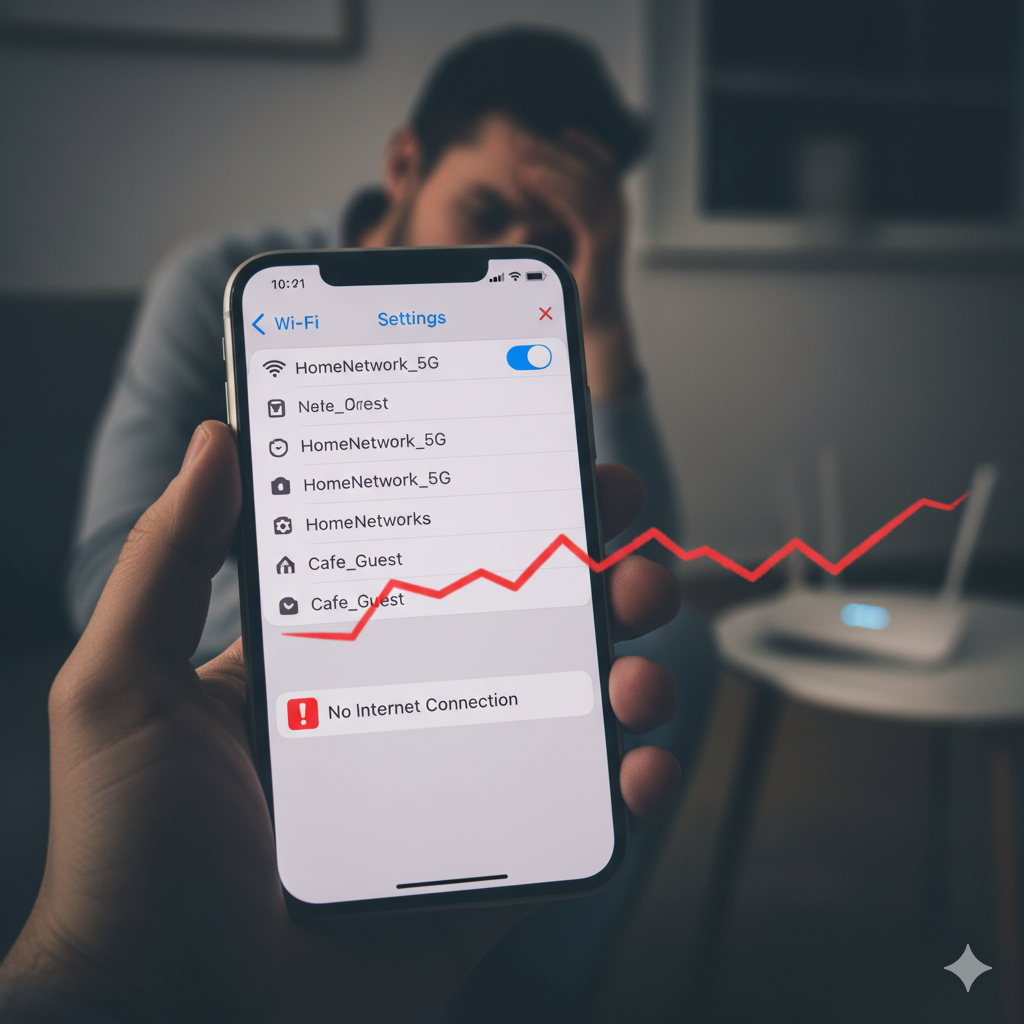
Few things are more frustrating than when your iPhone refuses to connect to Wi-Fi. Whether you’re trying to stream, download apps, or just browse, a broken connection can throw off your entire day. The good news? Many Wi-Fi issues can be resolved at home with simple troubleshooting before you consider professional repair.
At QuickFix iPhone, our technicians work with hundreds of iPhone repairs every year, including Wi-Fi and connectivity issues. This guide walks you through the most common reasons your iPhone won’t connect to Wi-Fi and how to fix them safely.
Why iPhones Struggle with Wi-Fi Connections
Connectivity problems are among the top issues iPhone users face. According to Apple Support, Wi-Fi disruptions are often linked to software glitches, outdated settings, or hardware problems in the device’s antenna.
Some of the most common causes include:
- Outdated iOS software
- Incorrect network settings
- Router or modem issues
- Hardware damage (antenna, Wi-Fi chip)
- Security settings or restrictions
Step-by-Step Fixes Before Considering Repair
1. Check Your Router and Internet
Before assuming your iPhone is at fault, restart your Wi-Fi router. Try connecting another device to the same network. If other devices also fail, the issue may be with your internet provider.
2. Toggle Wi-Fi Off and On
Swipe down to open Control Center, then toggle the Wi-Fi icon off and on. Sometimes, this quick reset forces a fresh connection.
3. Forget and Reconnect to the Network
Go to Settings > Wi-Fi, tap the network name, and select Forget This Network. Then reconnect by entering your password.
4. Reset Network Settings
Navigate to Settings > General > Reset > Reset Network Settings. This clears saved Wi-Fi passwords, VPNs, and cellular preferences but often resolves stubborn connectivity bugs.
5. Update iOS Software
Ensure your device is running the latest iOS version. Apple regularly releases updates that patch bugs and improve Wi-Fi stability.
6. Check for Hardware Issues
If your iPhone has been dropped or exposed to water, internal Wi-Fi components may be damaged. In this case, professional repair is often necessary.
When to Seek Professional Help
If you’ve tried all the above steps and your iPhone still won’t connect to Wi-Fi, the issue may be hardware-related. QuickFix iPhone offers expert diagnostics and repairs for Wi-Fi antennas, logic boards, and other internal parts.
Explore our services:
Conclusion
iPhone Wi-Fi issues can be annoying but are often easy to resolve with simple troubleshooting. By updating your iOS, resetting network settings, or reconnecting to your router, you can often restore stable connectivity without needing a repair. If these steps don’t help, a professional technician can quickly diagnose and fix deeper hardware issues.
FAQs
Q1: Why does my iPhone say “Incorrect Password” even if it’s right?
A: This usually happens due to saved corrupted settings. Forget the network and re-enter your password.
Q2: Can a damaged antenna cause Wi-Fi issues?
A: Yes. If your iPhone struggles to find networks or drops connections frequently, it may need antenna repair.
Q3: Will resetting network settings delete everything on my phone?
A: No, it only erases Wi-Fi passwords, VPNs, and Bluetooth connections. Your apps, photos, and data remain safe.
Disclaimer
This content is for informational purposes only. If your iPhone still cannot connect to Wi-Fi after following these steps, consult a certified repair technician for professional assistance.